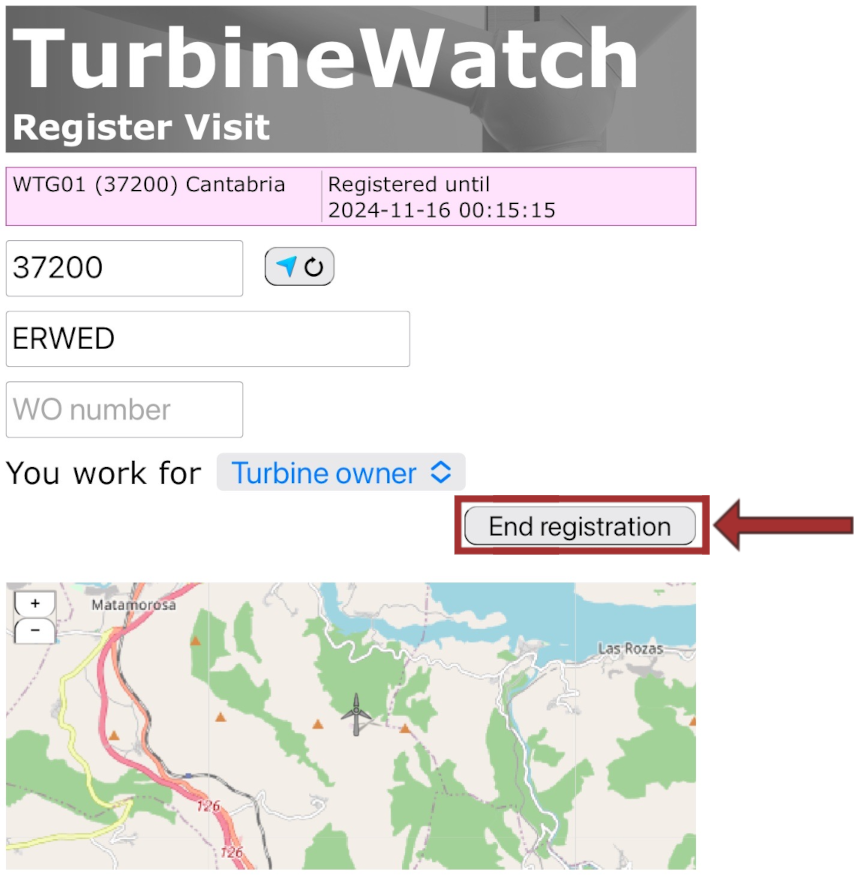
1. Register turbine stop
To register the turbine stop, please scan the QR code. If you are using an iPhone, you can scan the code directly with the camera. For Android devices, open the scanner app.

The QR Code will direct you to the Register visit in TurbineWatch.
Select ‘Allow’ in the pop-up window to enable the page to access your location. This is mandatory for the app to find nearby turbines.
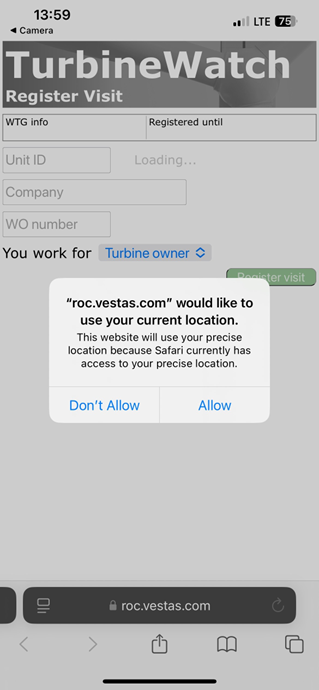
If the pop-up doesn’t appear automatically and the app can’t detect your location, please manually adjust the settings on your mobile device.

1. Open the Settings app on your iPhone.
2. Scroll down and tap on Privacy & Security.
3. Select Location Services.
4. Toggle the switch to turn on Location Services if it’s off.
5. Scroll down to see the list of the apps.
6. Tap on and choose Safari Websites.
7. Select from the options: Ask Next Time; While Using the App; or Always.
8. Enable Precise Location: Toggle the switch next to "Precise Location" to turn it on (should be green).

1. Open the Settings app on your Android device.
2. Scroll down and tap on Location.
3. Toggle the switch to turn on Location if it’s off.
You can also manage location settings for individual apps.
1. In the Location menu, tap on App permissions.
2. Select your browser to set its location access to Allow all the time; Allow only while using the app; Ask every time.
Your location is not updating in Turbine Watch?
Please try the following steps:
- Use another location-based app (e.g. Google Maps or Apple Maps) to update your current position.
- Scan the QR code again / reload the webpage and check if your location has been updated.
After locating the turbine, you can register the turbine visit. Please complete the following mandatory fields:
Company: The company you are working for.
WO number (Not mandatory for options 'Turbine owner'): The number of the WO you are working on. *
Brief description (Not mandatory for options 'Turbine owner'): If you don't have a WO number, please provide a short explanation of what you are going to do in the turbine.
You work for: Choose one of Turbine owner / Subcontr. for Turbine owner / Vestas / Subcontr. for Vestas
* WO number
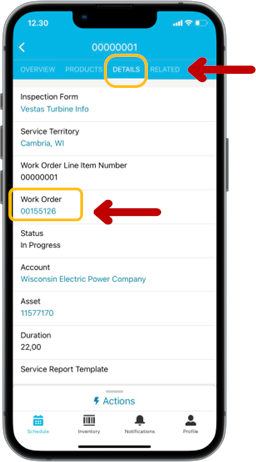
FSL Field Service Lightning app
To find the work order number in the FSL app, open your service appointment (SA) and check the details sections.
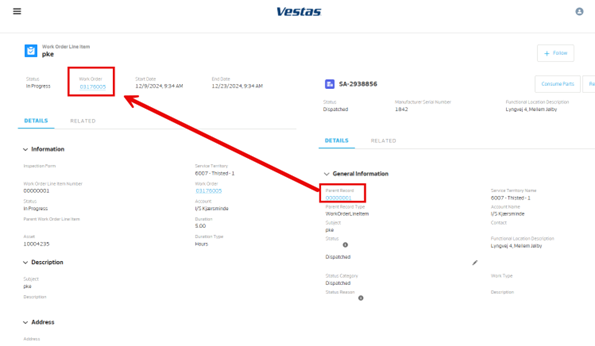
Web FSL
To find the Work Order number in Web FSL, open your service appointment (SA). In the detail section go to the Parent Record to see the WO.
Then, tap the button 'Register visit'.
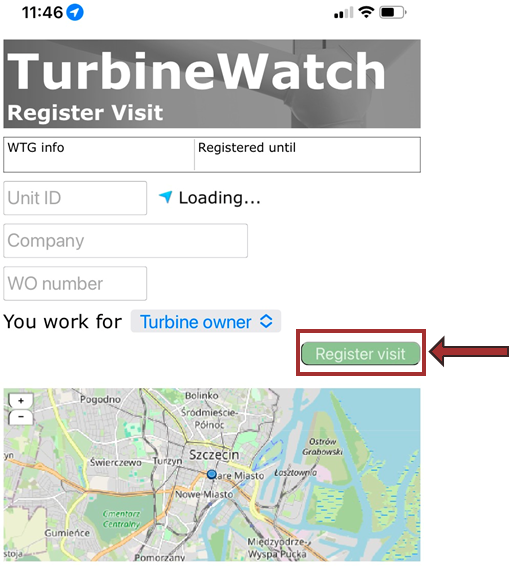
1.1 Register turbine stop via SMS or email
If you cannot locate the turbine using geolocation, please register the turbine visit via SMS or email. To do so, please complete the following fields:
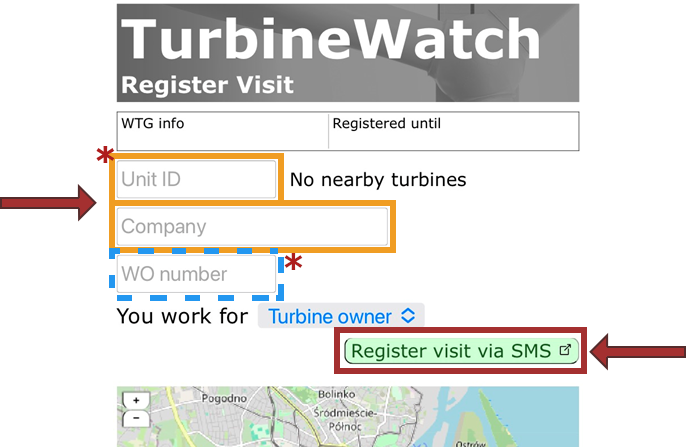
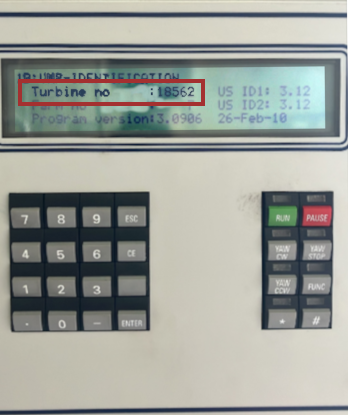
* Unit ID (Turbine number) can be found in the turbine controller display.
* Where do I find the WO number?
When pressing 'SMS' or 'email' you will be taken to your SMS or email app respectively with an already formatted message. You only need to press send. You will get a response confirming the registration.
2. Register turbine start
After completing your work, please scan the QR code when starting the turbine.

Scanning the code will direct you to the same page, where you can complete the deregistration process.